How to Set Up Squarespace Booking Pages for Appointment-Based Businesses
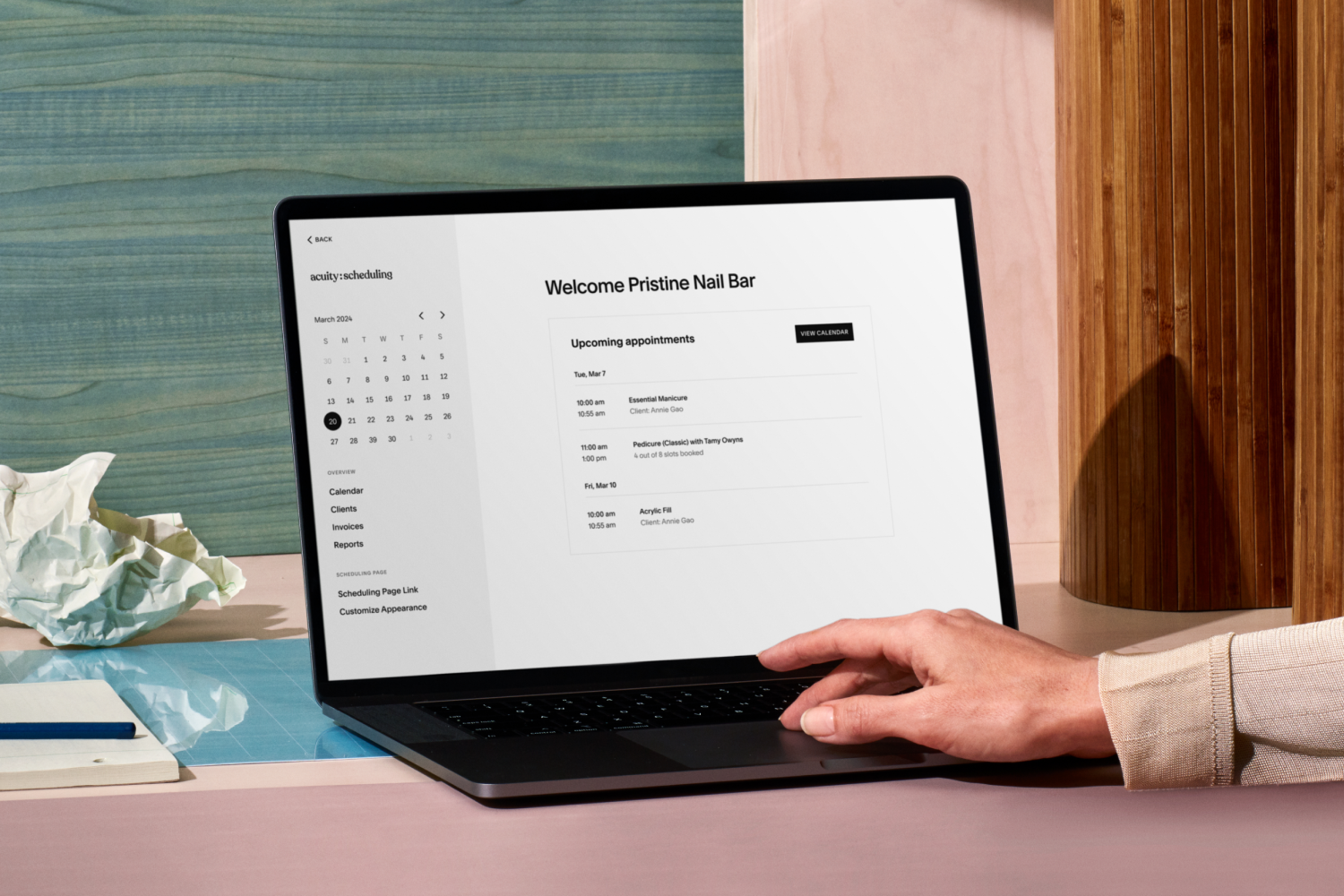
Squarespace runs its appointment scheduling through Acuity, which handles the calendar, payment collection, and reminders once it's connected properly. The native Scheduling block embeds Acuity directly into a page's existing design, keeping visitors on-domain, which makes it the stronger choice over an external link or custom embed for most service businesses. Acuity and Squarespace Scheduling are the same product under two names, with identical features and pricing tiers that scale by staff calendars and add-ons. Deposits collected at the point of booking cut no-shows dramatically, and two-way calendar sync with Google, iCloud, Outlook or Office 365 prevents double-bookings. A booking page that puts the calendar above the fold, works cleanly on mobile, and sends clear confirmation and reminder messages converts better than a page that merely looks polished.
If you run a business where people book time with you, a hairdresser, a physio, a consultant, a photographer, then the booking page is the most important part of your website. A clean Squarespace booking page setup turns a curious visitor into a confirmed appointment without a single phone call. Squarespace handles scheduling through Acuity, and once it's wired up properly it runs the calendar, takes payment, and sends reminders while you get on with the actual work.
Below is a full walkthrough: choosing how to add booking to your site, setting up Acuity, designing the page so people finish the booking, collecting payment, and fixing the things that commonly break. This covers the whole path in one place, which is more than most scattered help articles manage.
Scheduling blocks embed booking directly into Squarespace pages
There are three ways to get a booking page onto Squarespace, and picking the right one before you touch a single setting saves a lot of backtracking.
Scheduling block — Squarespace's native content block. You drop it onto any page and it embeds your Acuity scheduler directly inside your site design. Best for most service businesses because it keeps people on your domain.
External link — you send visitors out to a standalone Acuity page hosted on Acuity's own address. Quickest to set up, but it hands your visitor off to a different-looking page, which can dent trust at the exact moment they're deciding to commit.
Custom embed — you paste an embed code (from Acuity or a third-party scheduling tool) into a code block. Useful if you want a specific widget behaviour the native block doesn't offer, though it's fiddlier and easier to break on mobile.
For nearly everyone, the scheduling block is the right call. It inherits your fonts and colours, sits inside your existing navigation, and doesn't dump the visitor onto a page that feels like it belongs to another brand. I'd only reach for the external link if you don't have a full website yet and want a booking page fast. Acuity works as a standalone product, so you don't strictly need a Squarespace site to use it, but if you already have one, embedding is the stronger choice.
Acuity and Squarespace Scheduling are identical products
You'll see both names and it's confusing on purpose. Squarespace Scheduling and Acuity Scheduling are the same product. Squarespace acquired Acuity and rebranded parts of it, so depending on where you signed up and when, the dashboard might carry either name. Same features, same calendar, same booking flow. Don't waste time hunting for a difference that isn't there.
The comparison that matters most is Acuity against third-party schedulers you might already know, like Calendly. Here's how they stack up for a Squarespace user.
| Feature | Acuity / Squarespace Scheduling | Third-party scheduler (e.g. Calendly) | Native scheduling block |
|---|---|---|---|
| Embeds inside Squarespace design | Yes, purpose-built | Via code block only | Yes, one click |
| Takes payment at booking | Yes, full integration | Limited, depends on tool | Yes, uses Acuity |
| Custom intake forms | Detailed, per service | Basic on lower tiers | Inherits from Acuity |
| Matches your site branding | Colours and logo editable | Harder to style | Best, uses site styles |
| Works without a Squarespace site | Yes, standalone | Yes | No, needs the site |
If you're already paying for Squarespace, keeping scheduling inside the same ecosystem is the sensible move. One login, one support line, and payment and booking data live together. Bolting on a separate scheduler makes sense only if your team already lives inside that other tool.
Connect Acuity through your Squarespace dashboard or sign up standalone
Start from your Squarespace dashboard and open the Scheduling area, or sign up directly through Acuity if you're going standalone. You can begin on a free trial to test the flow before committing to a paid plan. Acuity's plans scale by how many staff calendars you need and which advanced features you want, so check the current tiers and prices on the official Acuity pricing page rather than trusting a number you read in a blog post, mine included, because those change.
One thing worth knowing early: Squarespace and Acuity have run promotional discounts on new plans (a 20 percent off code for new scheduling plans has been floating around), so it's worth checking for an active offer before you subscribe.
Once you're in, connect your calendar. Acuity syncs two ways with Google Calendar, iCloud, Outlook and Office 365, which stops the nightmare of getting double-booked because a dentist appointment in your personal calendar didn't block out your work availability. Set that sync up on day one.
Services, calendars and availability set the tone for your whole booking experience
This is the part that decides whether your booking page feels effortless or overwhelming, so slow down here.
One calendar per resource, not per service
A calendar in Acuity represents a resource that can only do one thing at a time, usually a person or a room. A solo practitioner needs exactly one calendar. A two-chair barbershop needs two, so both chairs can be booked for the same slot. A clinic with three therapists and two treatment rooms needs to think in terms of the tightest bottleneck. Don't create a calendar per service, that's the common mix-up. Services are separate from calendars. You create one calendar per bookable resource, then attach services to it.
Set appointment duration to include your buffer time
Each service you offer becomes an appointment type: name, duration, price, and the calendar it runs on. Be precise with duration. If a consultation truly takes 50 minutes and you need 10 to write notes, set it to 60 or add padding time so back-to-back bookings don't collapse your day. Acuity lets you add buffer time before or after any appointment type, and it's one of the most underused settings on the platform.
Restrict booking windows to four to eight weeks ahead
Availability is set per calendar, so each staff member or resource can keep different hours. Block out lunch, set a minimum notice period so nobody books you for 8am tomorrow, and cap how far ahead people can book. A four to eight week booking window suits most service businesses. Longer than that and you'll be honouring prices and slots you set months ago.
Intake questions should match appointment type, not bog everyone
The intake form is where you collect what you need to deliver the appointment. You can attach different questions to different appointment types, which is powerful. A new-client physio booking might ask about injury history; a returning client booking skips all of it.
Keep the form short. Every extra field is another chance for someone to abandon the booking. Ask for the necessaries to run the appointment, name, contact, and the one or two things you truly need in advance, and leave the rest for when they arrive. If you're gathering health information or anything sensitive, make sure your form and privacy handling line up with your privacy policy so you're clear on how that data is stored.
You can also add your logo and set the scheduler's accent colours to match your brand. On paid plans you're able to remove the "Powered by Acuity Scheduling" branding, which is worth doing if you want the page to feel fully yours. Check which tier that sits on before you assume you have it.
Deposits at booking slash no-show rates in half
Acuity connects to payment processors so people can pay a deposit or the full amount at the point of booking, which cuts no-shows dramatically. You link a processor such as Stripe, Square or PayPal, then decide per appointment type whether payment is required up front, optional, or taken later.
On transaction fees, this trips a lot of people up. Your payment processor charges its own fee on every transaction, that's standard and unavoidable. Whether Squarespace or Acuity adds a fee on top depends on your plan, and the specifics shift, so read the current terms on the official Squarespace and Acuity pricing pages rather than relying on a figure from memory. The safe planning assumption: budget for your processor's cut, and confirm any platform fee against your actual plan.
For deposits, I'd take a partial payment rather than the full amount on higher-value services. It commits the client without the sticker shock of paying everything before they've met you, and it still protects your calendar.
Squarespace booking page setup: point the block to a specific service
Now put it on your site. Edit the page where you want booking to live, add a Scheduling block, and connect it to your Acuity account. You can point the block at a specific appointment type or category, so a "Book a consultation" button on your homepage can drop people straight into the right service instead of a full menu.
Design matters more here than anywhere else on your site, because this is the page where money changes hands. A few things I'd insist on:
- Put the booking above the fold. If someone has to scroll past three paragraphs to find the calendar, you've added friction at the worst possible moment.
- Give it breathing room. A cramped scheduler feels stressful. Generous spacing does real work on a booking page, which is why I keep coming back to the value of whitespace in layouts like this.
- Check it on mobile. Most bookings happen on phones. Preview the page on a mobile viewport and confirm the calendar, time slots and payment step all tap cleanly without pinching or horizontal scroll.
- Cut everything else. No newsletter popup, no unrelated links, no distractions competing with the one action you want.
If you want to push the styling further than Squarespace's defaults allow, a little custom CSS on Squarespace can tidy up spacing and typography around the block. Keep it light, over-styling a third-party embed is how you break it on the next update.
Reminders should confirm time, prep instructions and what to bring
Automated notifications are the quiet workhorse of the whole system. Acuity sends a confirmation the moment someone books, then reminder emails (and SMS on the plans that include it) before the appointment. Turn these on and write them in your own voice rather than leaving the generic defaults.
A good reminder does three jobs: it confirms the time, it tells the person what to bring or prepare, and it gives them a one-tap way to reschedule. That reschedule link matters, because a client who can move an appointment themselves won't simply ghost you. Set a reminder to go out 24 hours before, and for higher-value bookings, a second one a couple of hours ahead.
The booking page that converts isn't the prettiest one. It's the one that answers "when can you see me, and how much" in the fewest possible taps.
Password protection hides booking from the public web
If your booking is invite-only, say a members' clinic or a service you only offer existing clients, you can password-protect the Squarespace page holding the scheduling block. Add password protection in the page settings, hand the password to the right people, and the booking calendar stays hidden from the open web while still working normally for anyone who has access. Handy for private classes, VIP slots, or beta-testing your setup before you go live.
Re-authorise the Squarespace-Acuity connection to fix blank blocks
A few issues come up again and again once a booking page is live. Here's how to clear them quickly.
- The scheduling block shows nothing. Almost always a connection problem. Re-authorise the link between Squarespace and Acuity in the block settings. If the block is pointed at an appointment type you've since deleted or renamed, it can render blank, reselect the service.
- No availability appears. Check the calendar's hours are set, the minimum-notice window isn't so long that today and tomorrow are excluded, and the appointment type is attached to a calendar that has availability. An orphaned service with no calendar shows no slots.
- It looks broken on mobile. Usually caused by custom CSS fighting the responsive layout, or the block sitting inside a rigid fixed-width section. Test in a private browser window, and strip your CSS back to confirm whether your own styling is the culprit.
- Bookings aren't syncing to your calendar. Reconnect the calendar sync and check it's set to two-way. One-way sync will pull your events in but won't block new bookings against your existing commitments.
If the page loads but feels sluggish, the scheduler isn't usually the cause, it's everything else on the page. A booking page bogged down by heavy images and stacked plugins is worth a proper audit, and the same fixes in my guide to speeding up a slow Squarespace site apply directly here.
Phone and email appointment systems lose bookings to friction
Any business selling time benefits from a booking page: salons, clinics, coaches, tradespeople doing quotes, studios, tutors, and consultants. The tell is simple, if you currently take appointments over the phone or through email back-and-forth, you're losing bookings to friction and after-hours enquiries you never see. A booking page captures the person who's ready at 11pm, which the phone never will.
Booking is one of several built-in features that make the platform punch above its weight for small operators, and it sits alongside a wider set of free Squarespace tools worth using for payments, invoicing and email. Once your calendar runs itself, the next thing worth sorting is making sure people find the page at all, which is where the fundamentals in my Squarespace SEO basics earn their keep.
Get the Squarespace booking page setup right and it stops being a feature and becomes the front door to your business, open around the clock, taking payment while you sleep. If you'd rather have the whole thing designed and wired up properly the first time, that's exactly the kind of work I do through my website design service — worth a conversation if your calendar deserves better than a contact form.